Poner en marcha OpenClone
Elige tu camino, configura tu IA y conecta las apps. Gratis, en todos los niveles.
Elige tu camino
Ejecuta OpenClone en tu propio ordenador y conéctale tu teléfono. Tu ordenador es tu servidor. Local primero, nada sale de tu máquina.
git clone https://github.com/PixxzR/openclone
cd openclonecp backend/.env.example backend/.env
# Edit .env:
# API_KEY=your-secure-random-key
# AI_PROVIDER=openai
# AI_API_KEY=your-openai-keycd backend
docker compose up -dcurl http://localhost:8000/api/status
# → {"status":"ok","version":"1.0.0"}# In the iOS or macOS app:
# Backend URL: http://your-local-ip:8000
# API Key: (same as API_KEY in .env)Instalar las apps
Conecta la app desktop macOS o la app móvil iOS a tu backend. Ambas están firmadas y listas para usar.
Signed & notarized with an Apple Developer certificate — no Gatekeeper warning, opens like any Mac app.
# https://github.com/PixxzR/openclone/releases
# → OpenClone-x.x.x.dmg# Open the .dmg
# Drag OpenClone.app → /Applications
# Eject the .dmg# Launch OpenClone
# Go to Settings
# Backend URL: http://your-server-ip:8000
# API Key: (same as API_KEY in your .env)
# → tap Connect# Switch to the "macOS Plugins" tab above
# to enable audio capture and screen OCRbrew install --cask openclone Skills de IA
Coloca un archivo skill en tu herramienta IA y sabrá cómo buscar tu vault, leer su formato y llamar a la API.
Claude Code Skill
Gives Claude Code full context about your vault structure, file format, and API. Drop it once, use it everywhere.
# OpenClone Memory Vault

## Vault Structure
Audio/YYYY-MM-DD.md  # meetings, system audio
Screen/YYYY-MM-DD.md # screen OCR every 30s
Web/YYYY-MM-DD.md    # browsing history

## Query Examples
Grep "meeting" in Audio/
Read vault/Screen/today.md
Install path:
~/.claude/skills/openclone.claude.md Cursor Rules
Teaches Cursor about the vault layout, file format, source types, and backend API endpoints for your project.
# OpenClone Memory Vault — Cursor Rules

vault/Audio/YYYY-MM-DD.md # audio transcriptions
vault/Screen/YYYY-MM-DD.md # screen OCR
vault/Web/YYYY-MM-DD.md   # web browsing

## API
POST /api/v1/ingest  # write memories
GET  /api/search?q=  # search vault
POST /api/ask/stream # AI query (SSE)
Install path:
.cursorrules (project root) Universal Context
A ready-to-paste context block that explains your memory vault to any AI: ChatGPT, Gemini, Claude web, etc.
# My Personal Memory — OpenClone Context

My vault captures:
• Audio — meetings, conversations
• Screen — OCR of active windows
• Web — sites visited, articles read
• Journal — voice notes

Format: Source/YYYY-MM-DD.md
with ### HH:MM timestamped entries
Install path:
Paste into any AI chat cp openclone.claude.md
~/.claude/skills/ cp openclone.cursorrules
/your/project/.cursorrules Paste the content of
openclone-context.md Descubre las apps
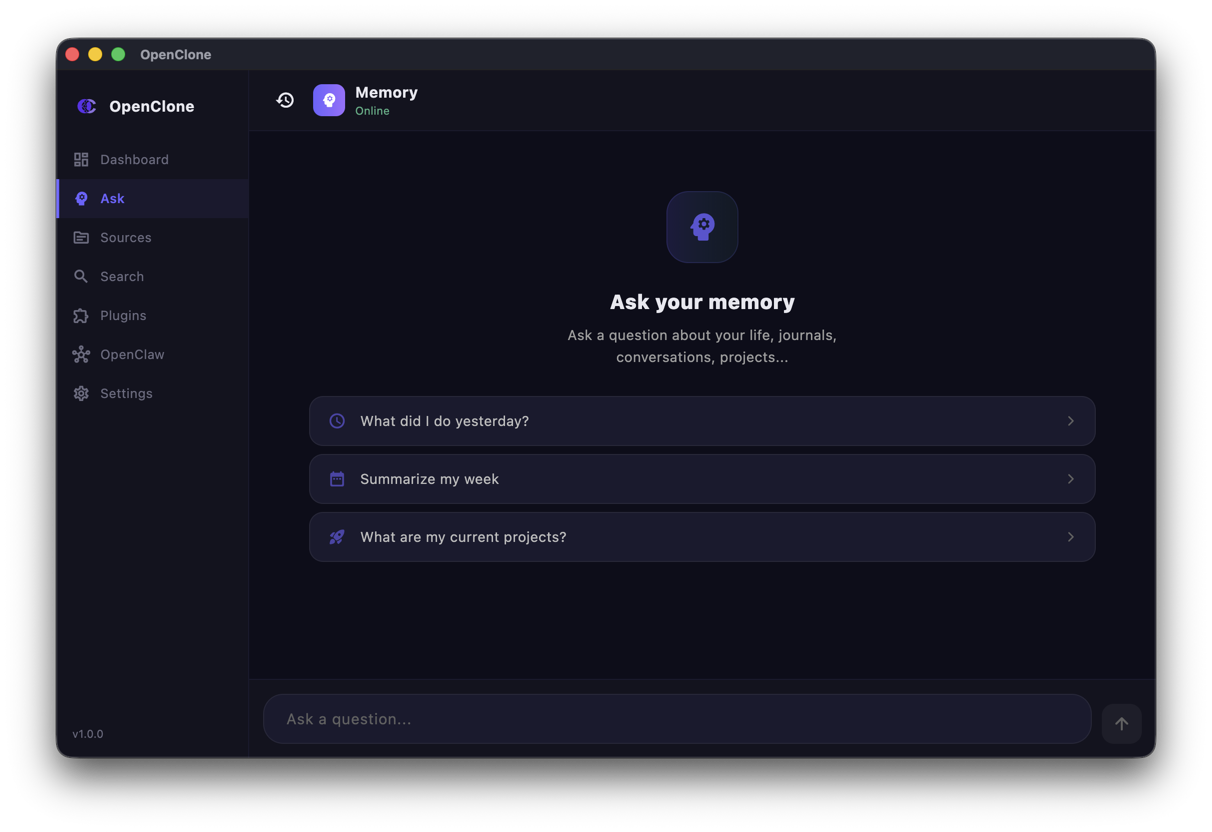
App iOS y app de escritorio macOS. Conéctalas a tu backend en segundos.
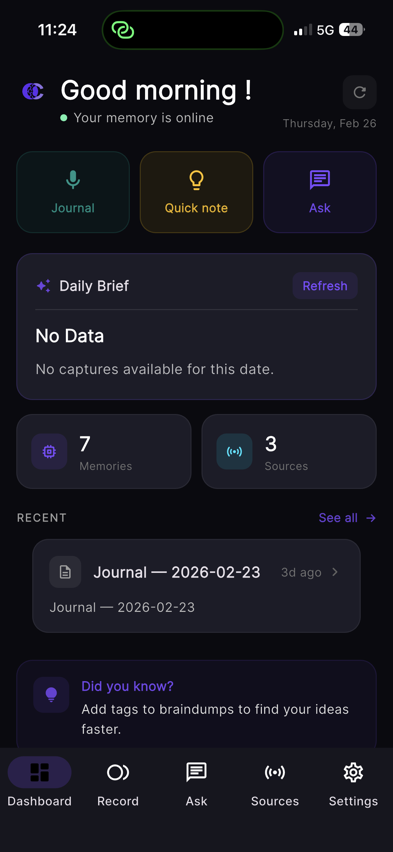 Dashboard
 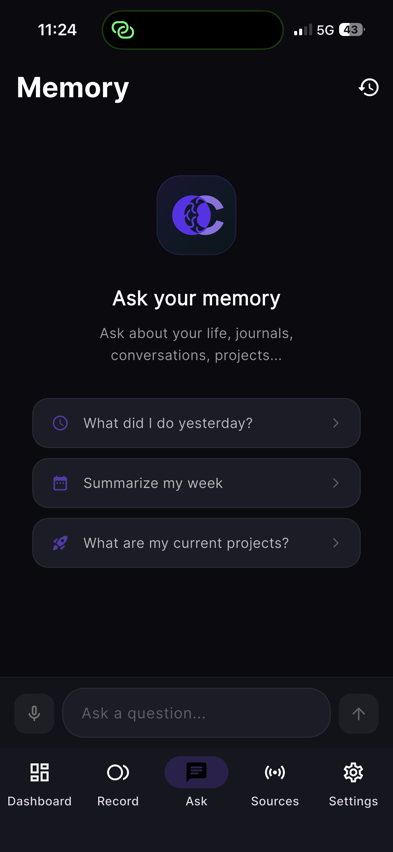 Ask
Ask 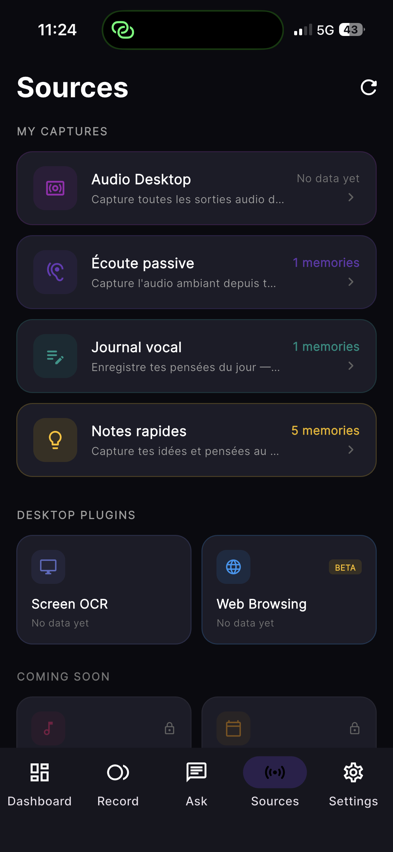 Sources
 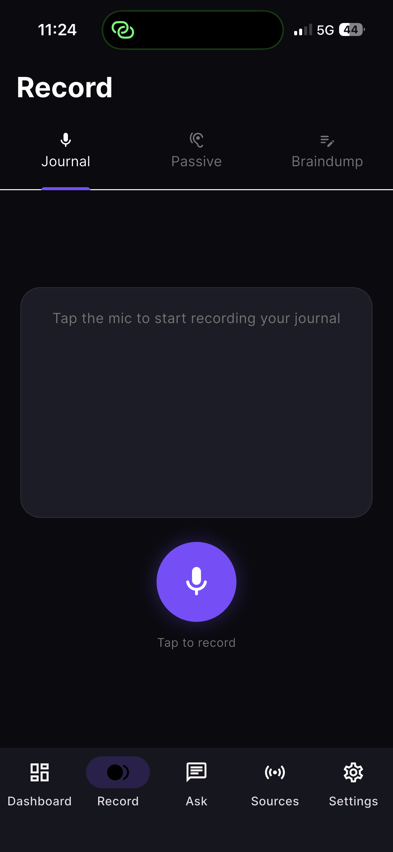 Journal
 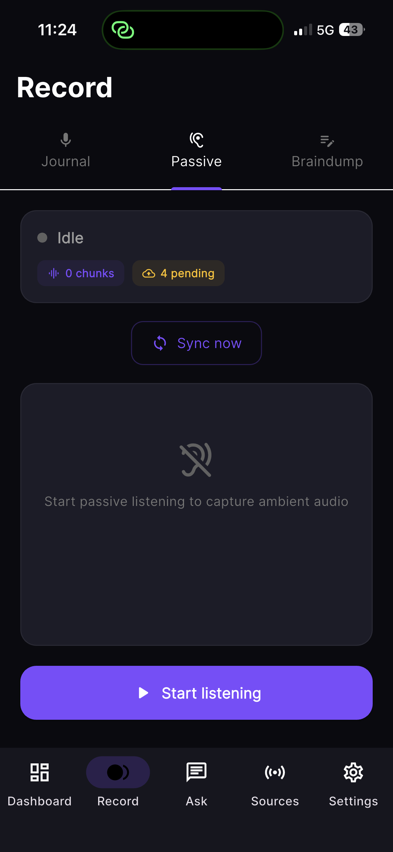 Passive
 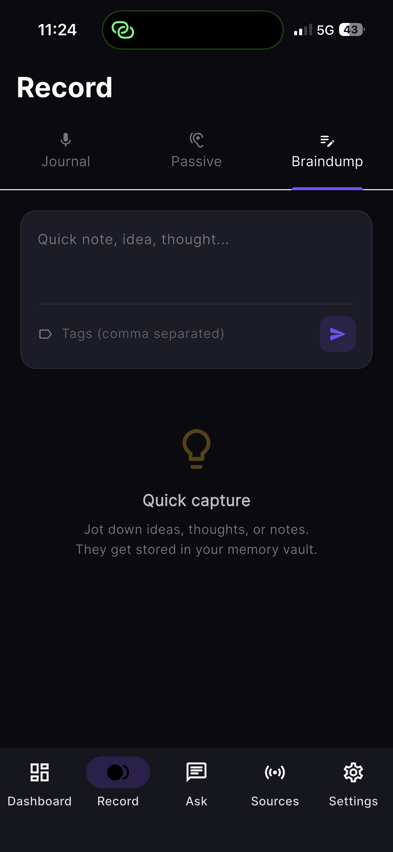 Braindump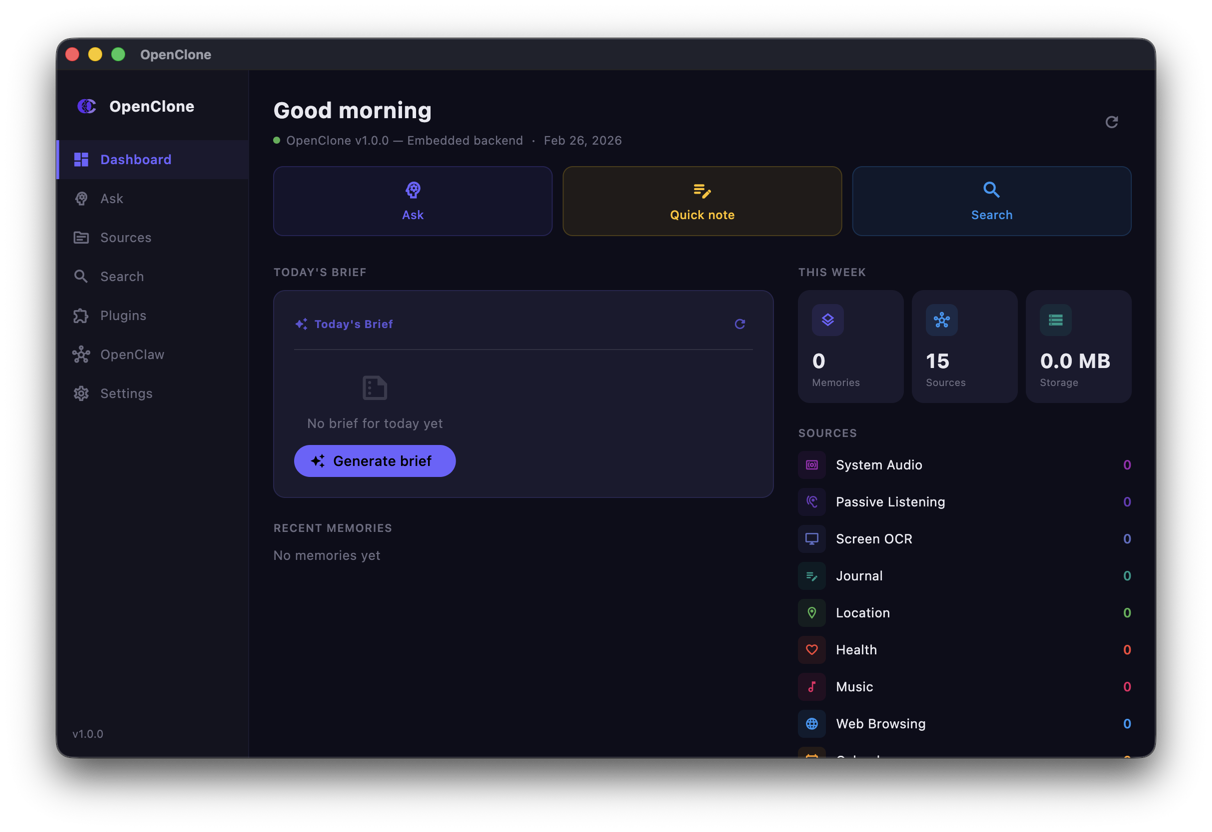
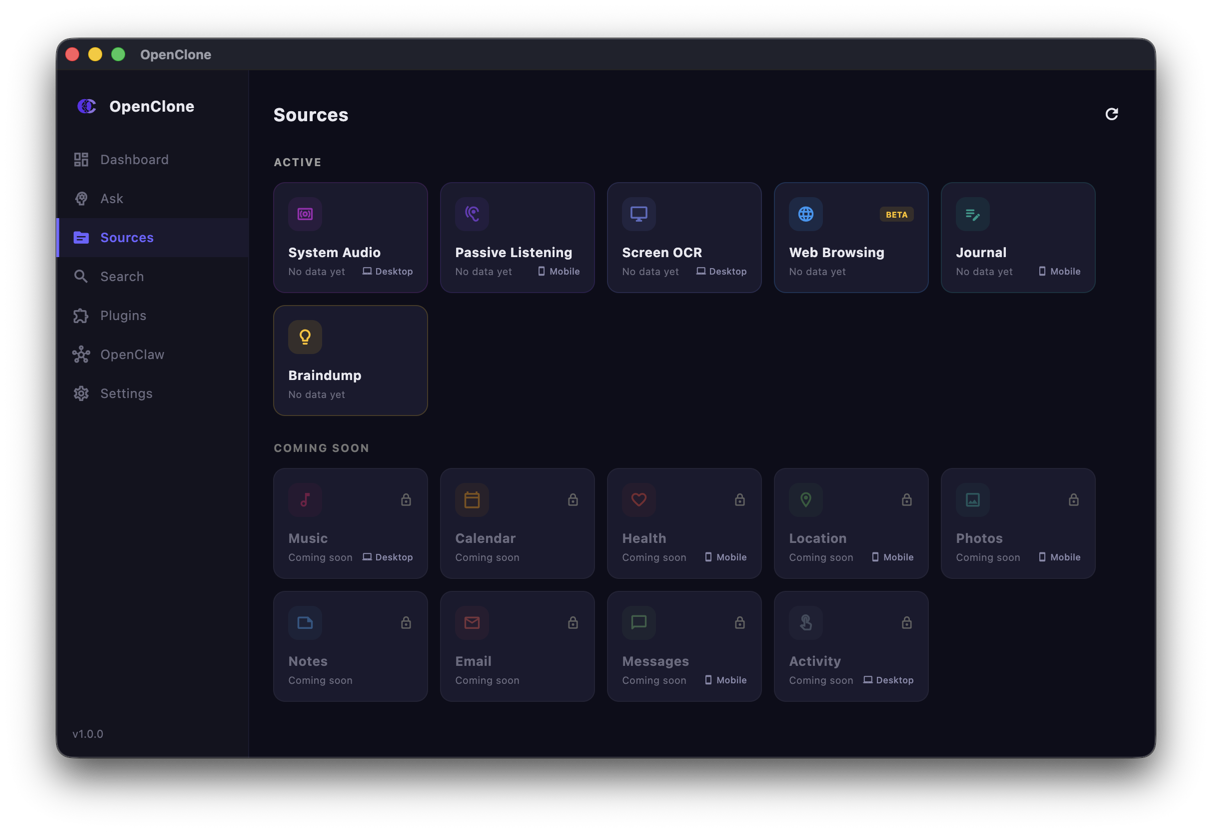
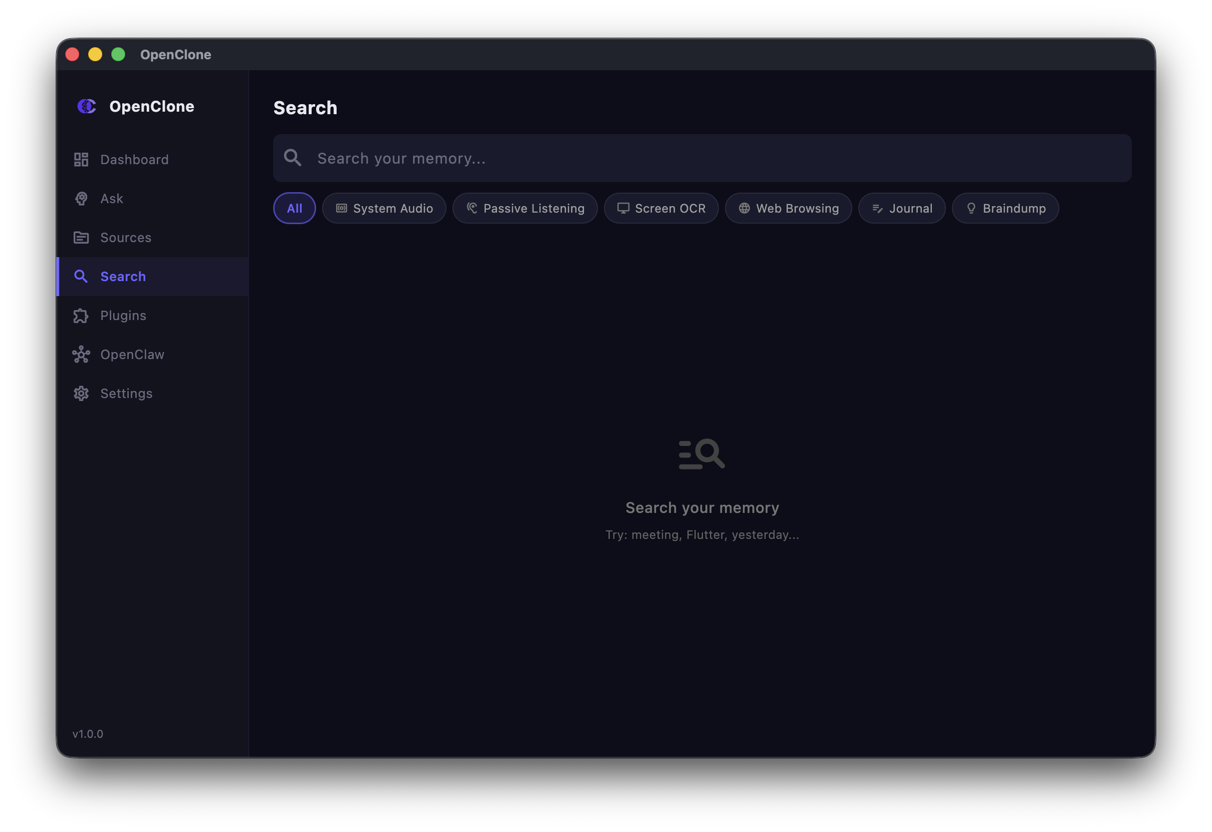
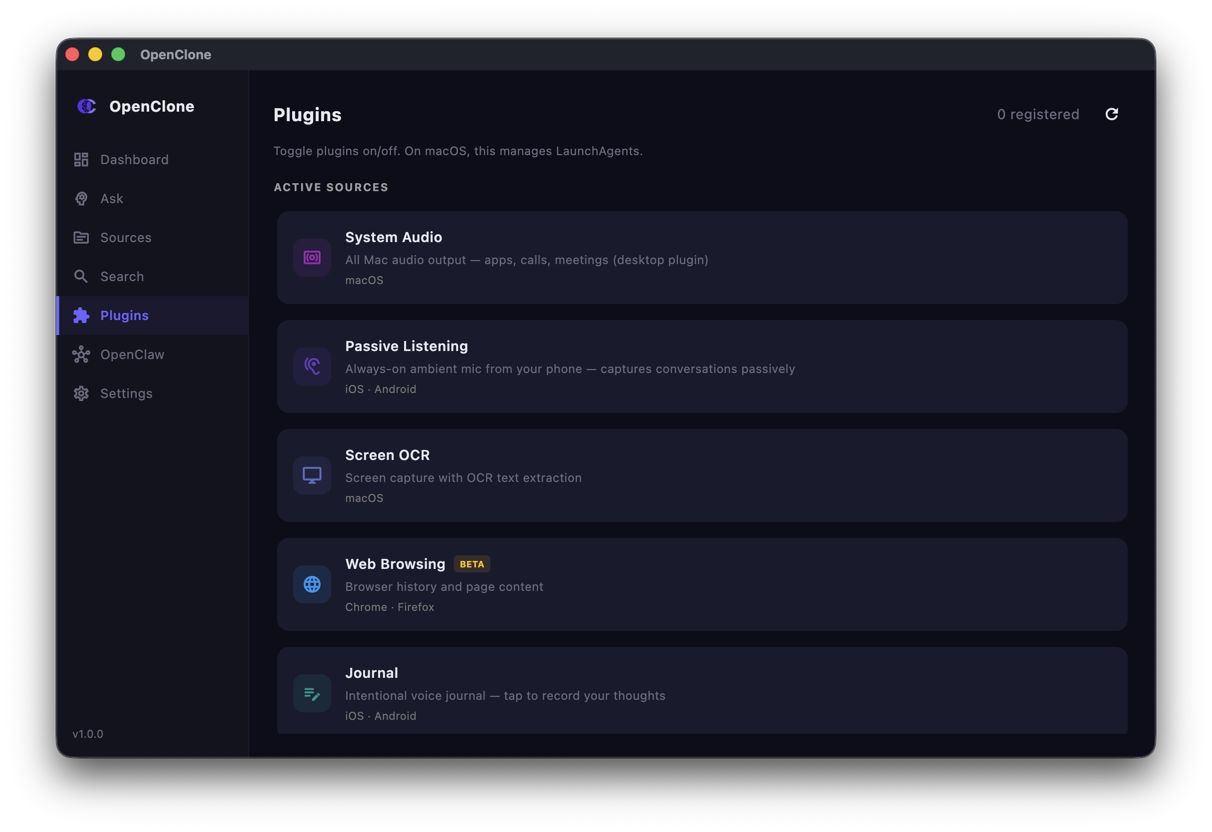
Watch it in action
Short demos of each key workflow — setup, capture, and querying your memory.
Videos to record (replace placeholders) click to expand
Record these short clips and place them in www/public/videos/.
Recommended: MP4 (H.264), max 1080p, 30fps, keep clips under 2 minutes for fast loading.
setup-5min.mp4 ~90s - 1. Start with terminal open, show the git clone command
- 2. cp .env.example .env → open .env in editor, fill API_KEY + AI_API_KEY
- 3. docker compose up -d → show container starting
- 4. curl /api/status → show {"status":"ok"} response
- 5. End: open iOS or macOS app, enter URL + key, show "Connected" badge
demo-ask-cli.mp4 ~60s - 1. Open terminal in vault directory
- 2. Run: claude (or your preferred CLI)
- 3. Ask a question like "What did I work on last week?"
- 4. Show the status events: "Searching Audio/...", "Reading..."
- 5. Show the final streamed answer with memory references
demo-ios.mp4 ~90s - 1. Open app — show dashboard (stats, active plugins, brief)
- 2. Tap Ask — type a question, show typing
- 3. Show status indicator "Searching..." while streaming
- 4. Show full answer with memory references
- 5. Navigate to Memories — scroll through recent entries
- 6. Quick peek at Settings
demo-macos.mp4 ~90s - 1. Show dashboard: vault count, active plugins (audio ●, screen ●)
- 2. Navigate to Ask — type a question
- 3. Show streaming response with "Reading..." status badge
- 4. Navigate to Plugins — show mac-audio and mac-screen running
- 5. Quick settings peek (AI provider, vault path)
Tip: use QuickTime screen recording on macOS, or iOS screen recording from Control Center. Export as .mp4.