Get OpenClone Running
Choose your path, configure your AI, and connect the apps. Free, every level.
Choose your path
Run OpenClone on your own computer and connect your phone to it. Your computer is your server. Local-first, nothing leaves your machine.
git clone https://github.com/PixxzR/openclone
cd openclonecp backend/.env.example backend/.env
# Edit .env:
# API_KEY=your-secure-random-key
# AI_PROVIDER=openai
# AI_API_KEY=your-openai-keycd backend
docker compose up -dcurl http://localhost:8000/api/status
# → {"status":"ok","version":"1.0.0"}# In the iOS or macOS app:
# Backend URL: http://your-local-ip:8000
# API Key: (same as API_KEY in .env)Install the apps
Connect the macOS desktop app or iOS mobile app to your backend. Both are signed and ready to use.
Signed & notarized with an Apple Developer certificate — no Gatekeeper warning, opens like any Mac app.
# https://github.com/PixxzR/openclone/releases
# → OpenClone-x.x.x.dmg# Open the .dmg
# Drag OpenClone.app → /Applications
# Eject the .dmg# Launch OpenClone
# Go to Settings
# Backend URL: http://your-server-ip:8000
# API Key: (same as API_KEY in your .env)
# → tap Connect# Switch to the "macOS Plugins" tab above
# to enable audio capture and screen OCRbrew install --cask openclone AI Skills
Drop a skill file into your AI tool and it knows how to search your vault, read its format, and call the API.
Claude Code Skill
Gives Claude Code full context about your vault structure, file format, and API. Drop it once, use it everywhere.
# OpenClone Memory Vault

## Vault Structure
Audio/YYYY-MM-DD.md  # meetings, system audio
Screen/YYYY-MM-DD.md # screen OCR every 30s
Web/YYYY-MM-DD.md    # browsing history

## Query Examples
Grep "meeting" in Audio/
Read vault/Screen/today.md
Install path:
~/.claude/skills/openclone.claude.md Cursor Rules
Teaches Cursor about the vault layout, file format, source types, and backend API endpoints for your project.
# OpenClone Memory Vault — Cursor Rules

vault/Audio/YYYY-MM-DD.md # audio transcriptions
vault/Screen/YYYY-MM-DD.md # screen OCR
vault/Web/YYYY-MM-DD.md   # web browsing

## API
POST /api/v1/ingest  # write memories
GET  /api/search?q=  # search vault
POST /api/ask/stream # AI query (SSE)
Install path:
.cursorrules (project root) Universal Context
A ready-to-paste context block that explains your memory vault to any AI: ChatGPT, Gemini, Claude web, etc.
# My Personal Memory — OpenClone Context

My vault captures:
• Audio — meetings, conversations
• Screen — OCR of active windows
• Web — sites visited, articles read
• Journal — voice notes

Format: Source/YYYY-MM-DD.md
with ### HH:MM timestamped entries
Install path:
Paste into any AI chat cp openclone.claude.md
~/.claude/skills/ cp openclone.cursorrules
/your/project/.cursorrules Paste the content of
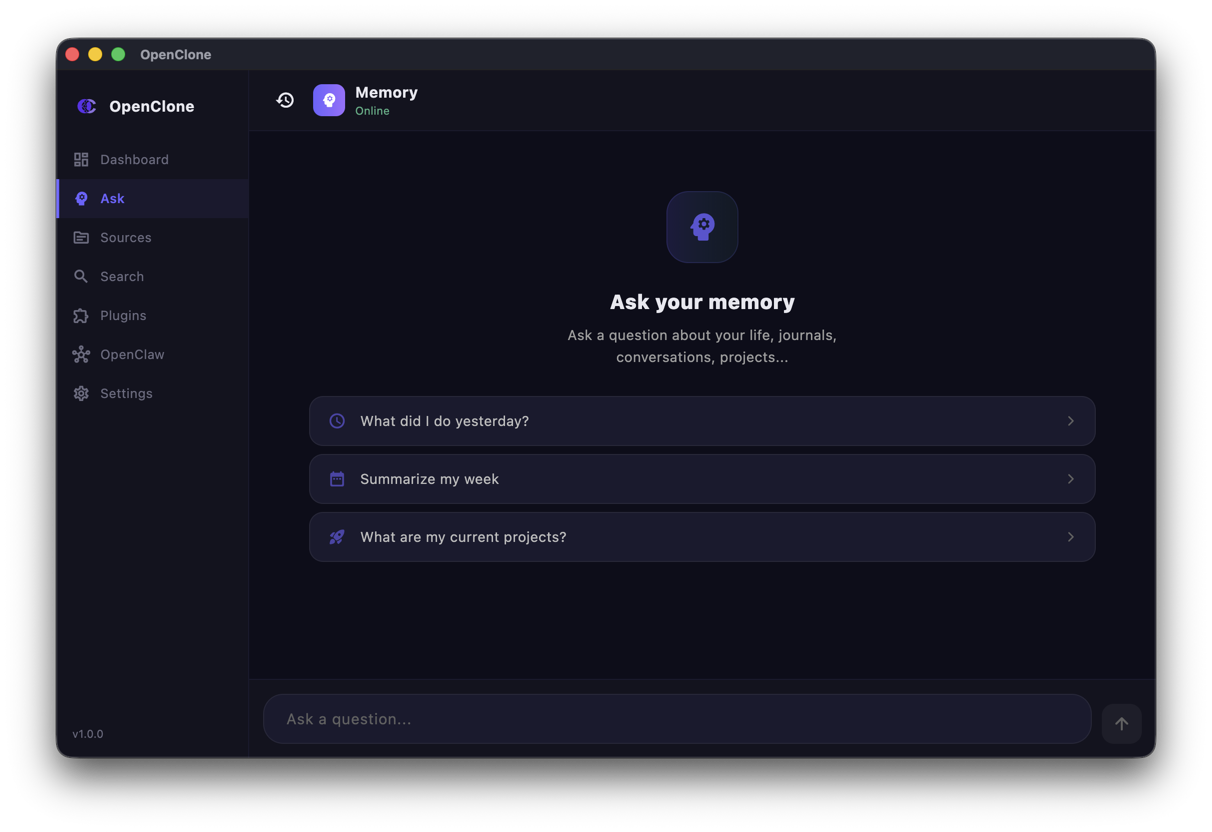
openclone-context.md See the apps
iOS companion app and macOS desktop app. Connect them to your backend in seconds.
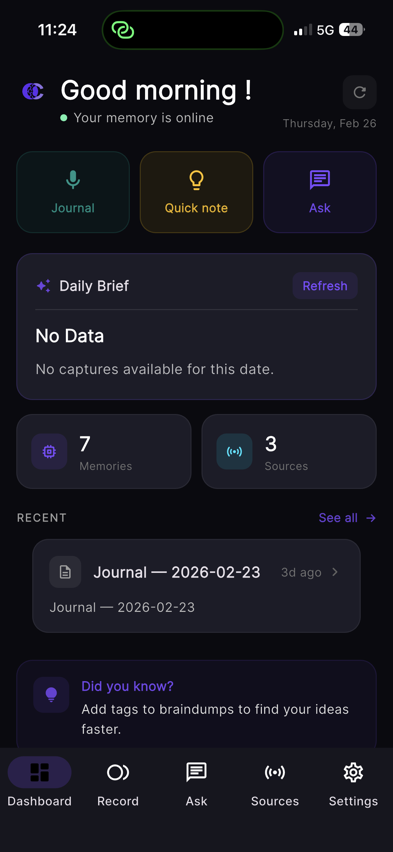 Dashboard
 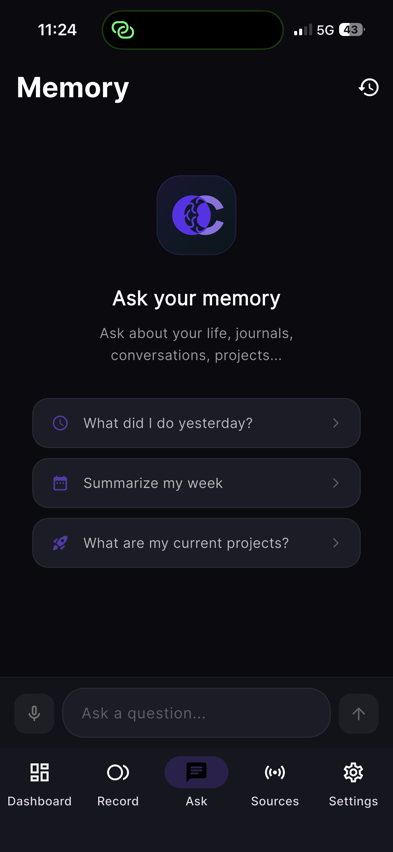 Ask
Ask 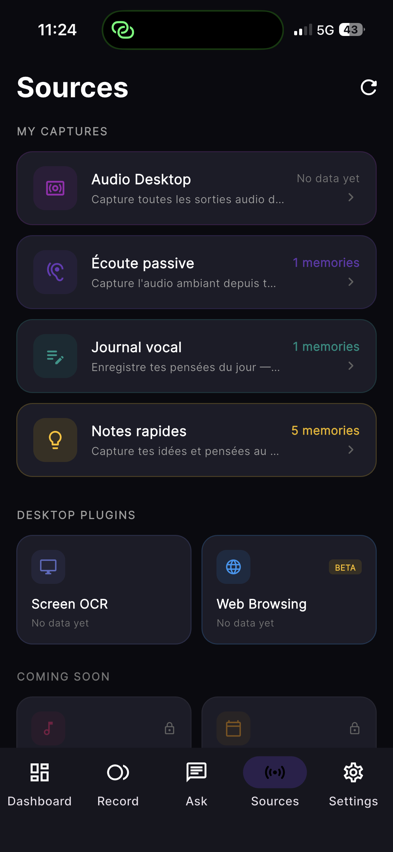 Sources
 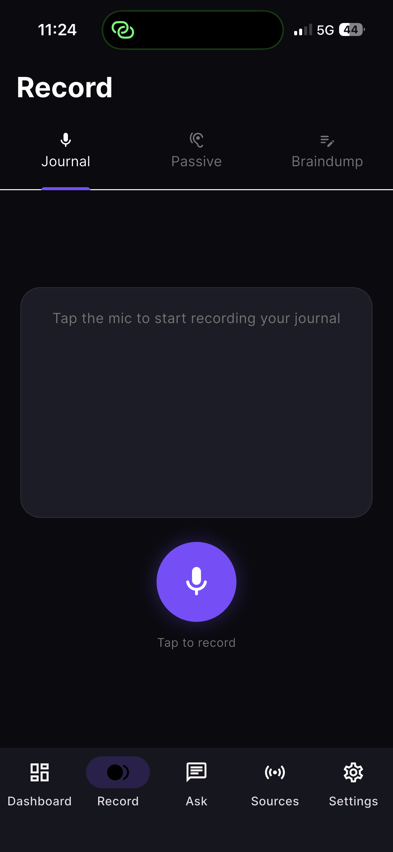 Journal
 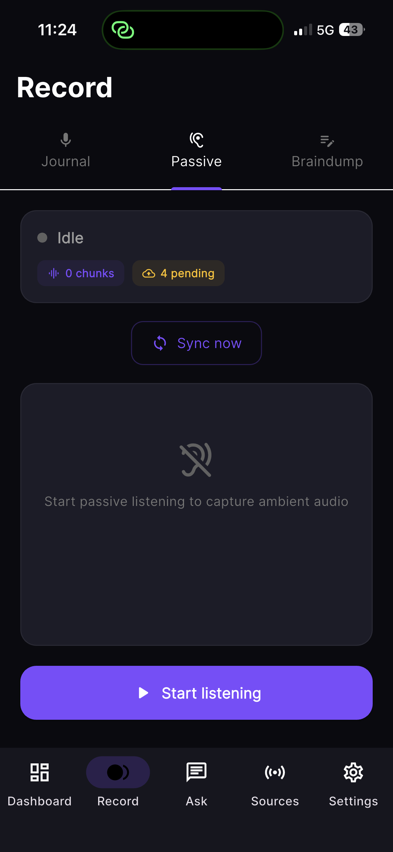 Passive
 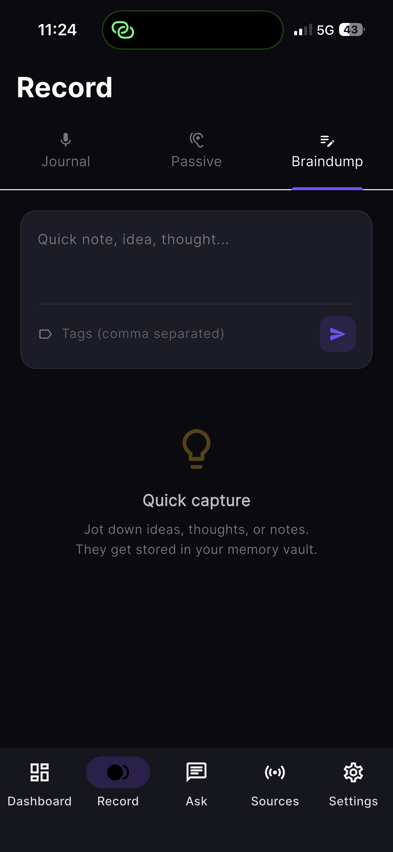 Braindump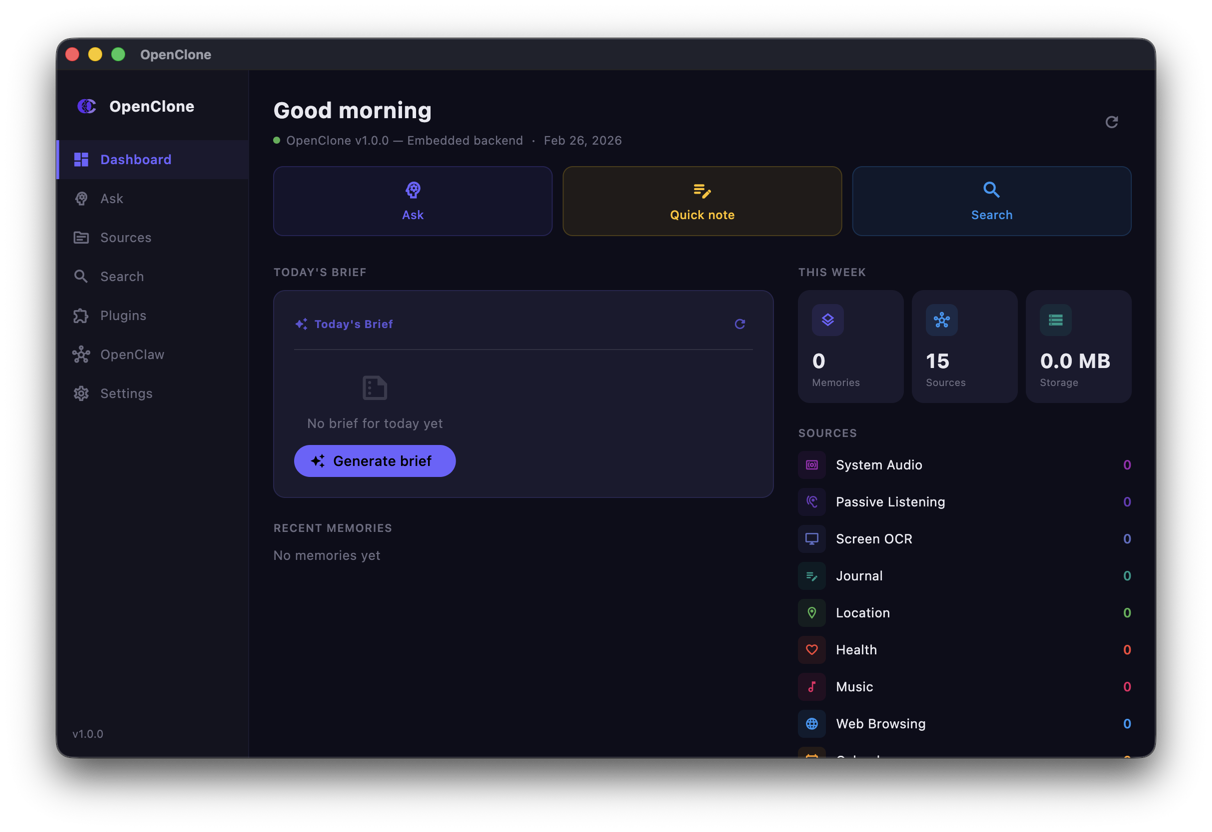
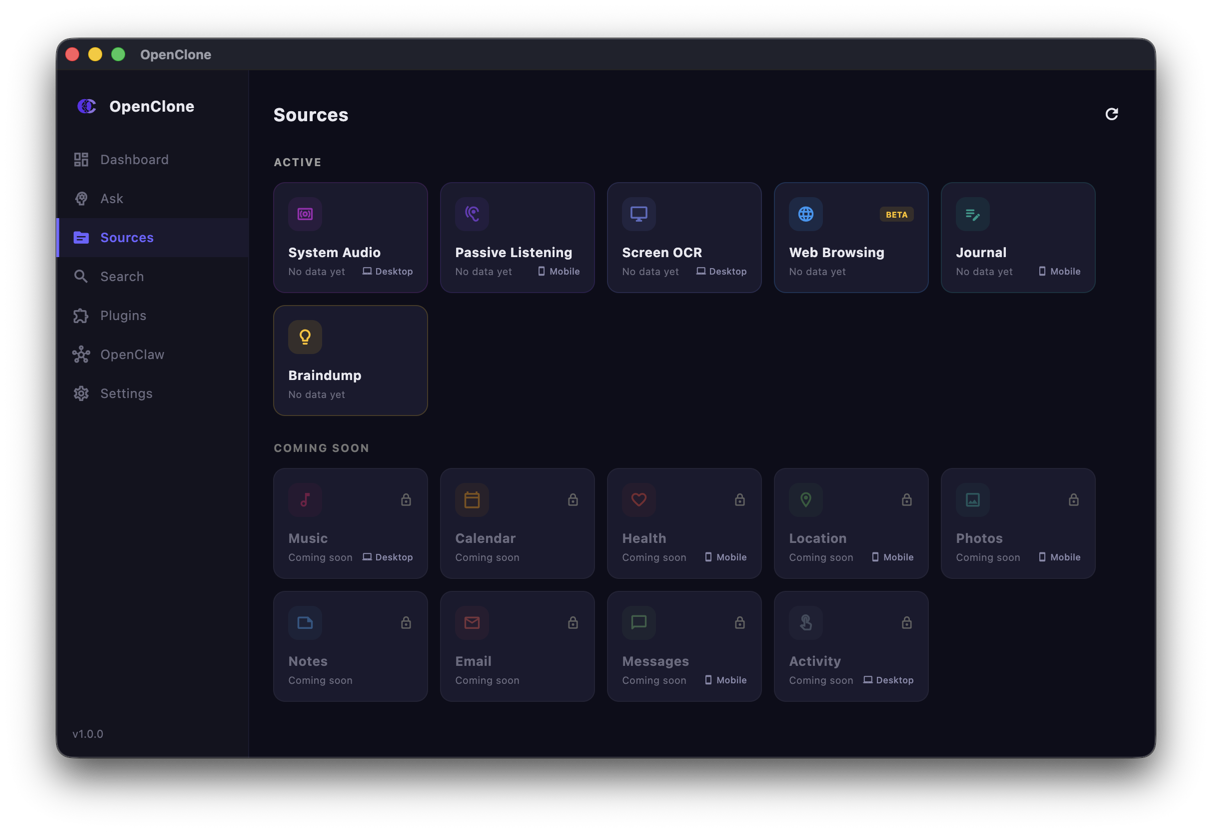
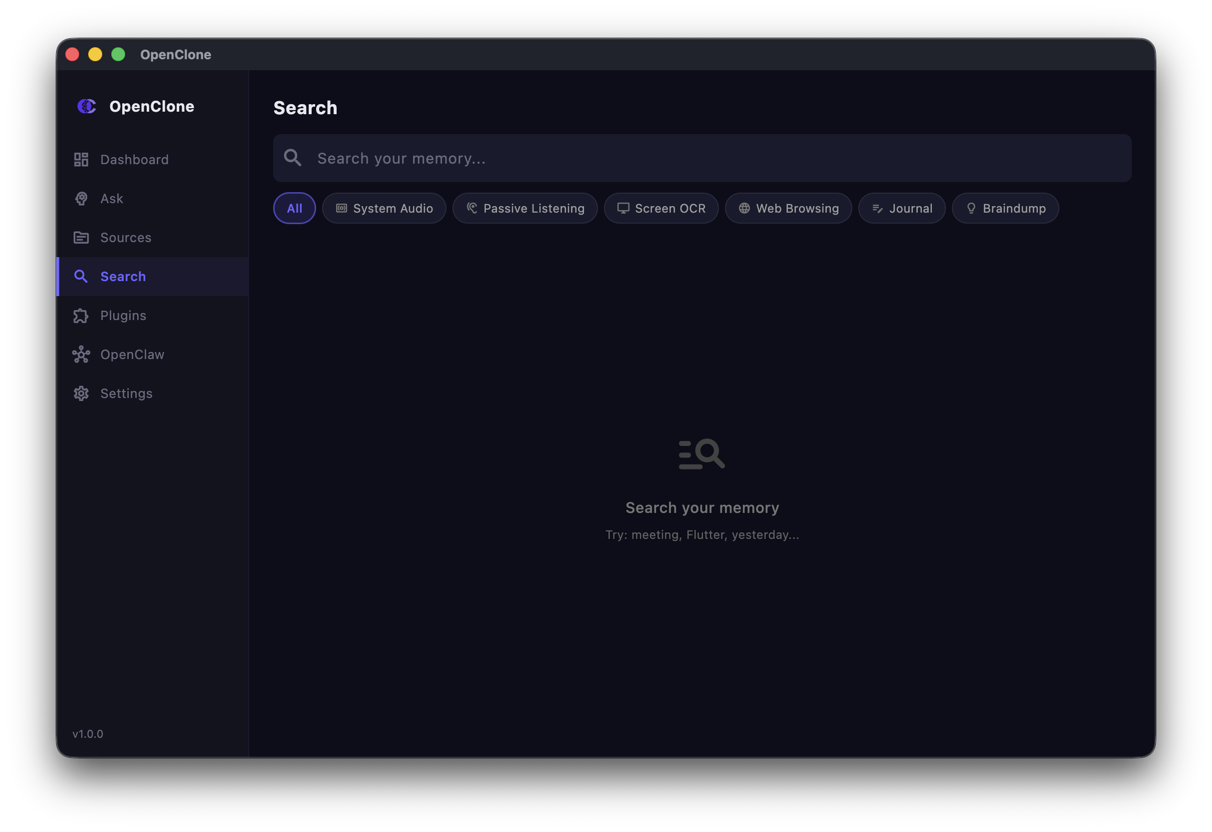
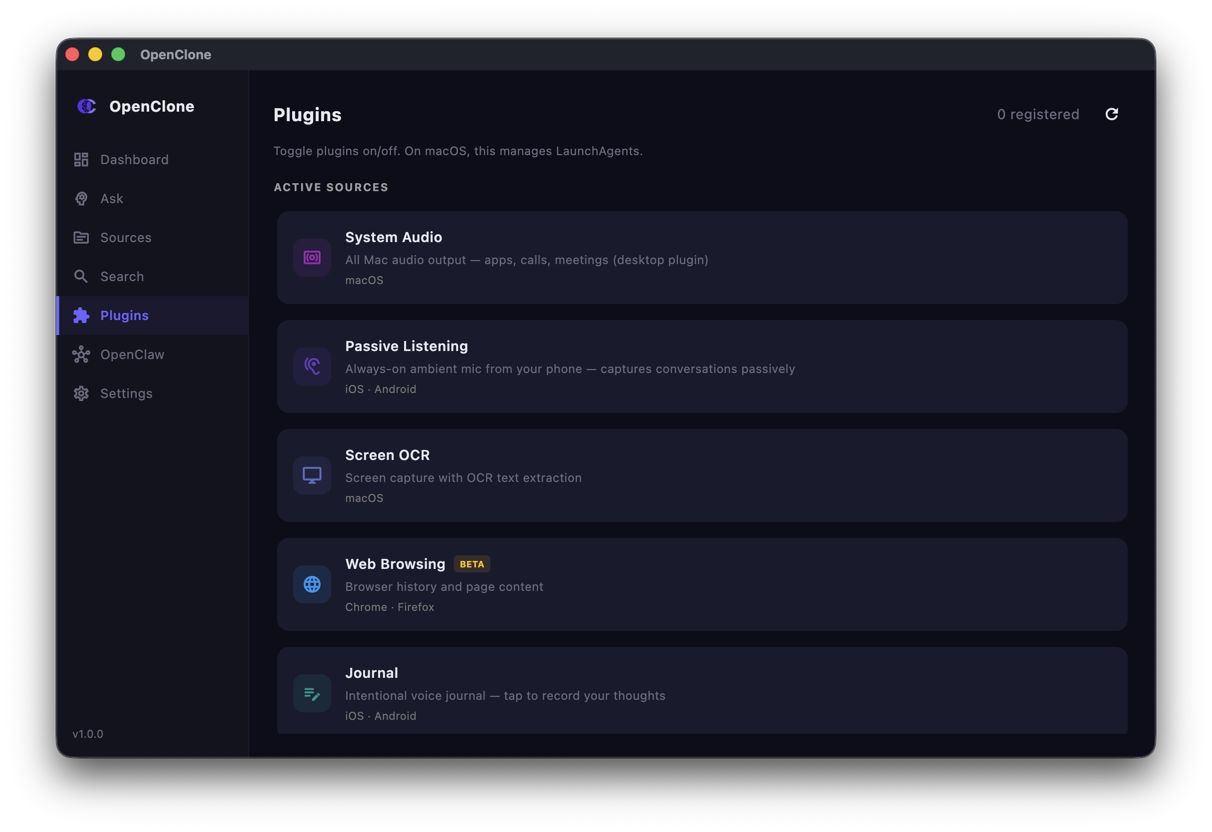
Watch it in action
Short demos of each key workflow — setup, capture, and querying your memory.
Videos to record (replace placeholders) click to expand
Record these short clips and place them in www/public/videos/.
Recommended: MP4 (H.264), max 1080p, 30fps, keep clips under 2 minutes for fast loading.
setup-5min.mp4 ~90s - 1. Start with terminal open, show the git clone command
- 2. cp .env.example .env → open .env in editor, fill API_KEY + AI_API_KEY
- 3. docker compose up -d → show container starting
- 4. curl /api/status → show {"status":"ok"} response
- 5. End: open iOS or macOS app, enter URL + key, show "Connected" badge
demo-ask-cli.mp4 ~60s - 1. Open terminal in vault directory
- 2. Run: claude (or your preferred CLI)
- 3. Ask a question like "What did I work on last week?"
- 4. Show the status events: "Searching Audio/...", "Reading..."
- 5. Show the final streamed answer with memory references
demo-ios.mp4 ~90s - 1. Open app — show dashboard (stats, active plugins, brief)
- 2. Tap Ask — type a question, show typing
- 3. Show status indicator "Searching..." while streaming
- 4. Show full answer with memory references
- 5. Navigate to Memories — scroll through recent entries
- 6. Quick peek at Settings
demo-macos.mp4 ~90s - 1. Show dashboard: vault count, active plugins (audio ●, screen ●)
- 2. Navigate to Ask — type a question
- 3. Show streaming response with "Reading..." status badge
- 4. Navigate to Plugins — show mac-audio and mac-screen running
- 5. Quick settings peek (AI provider, vault path)
Tip: use QuickTime screen recording on macOS, or iOS screen recording from Control Center. Export as .mp4.